Trading Bot
Use automated trading bots to boost token trading volume, holder count, and trading activity
Overview
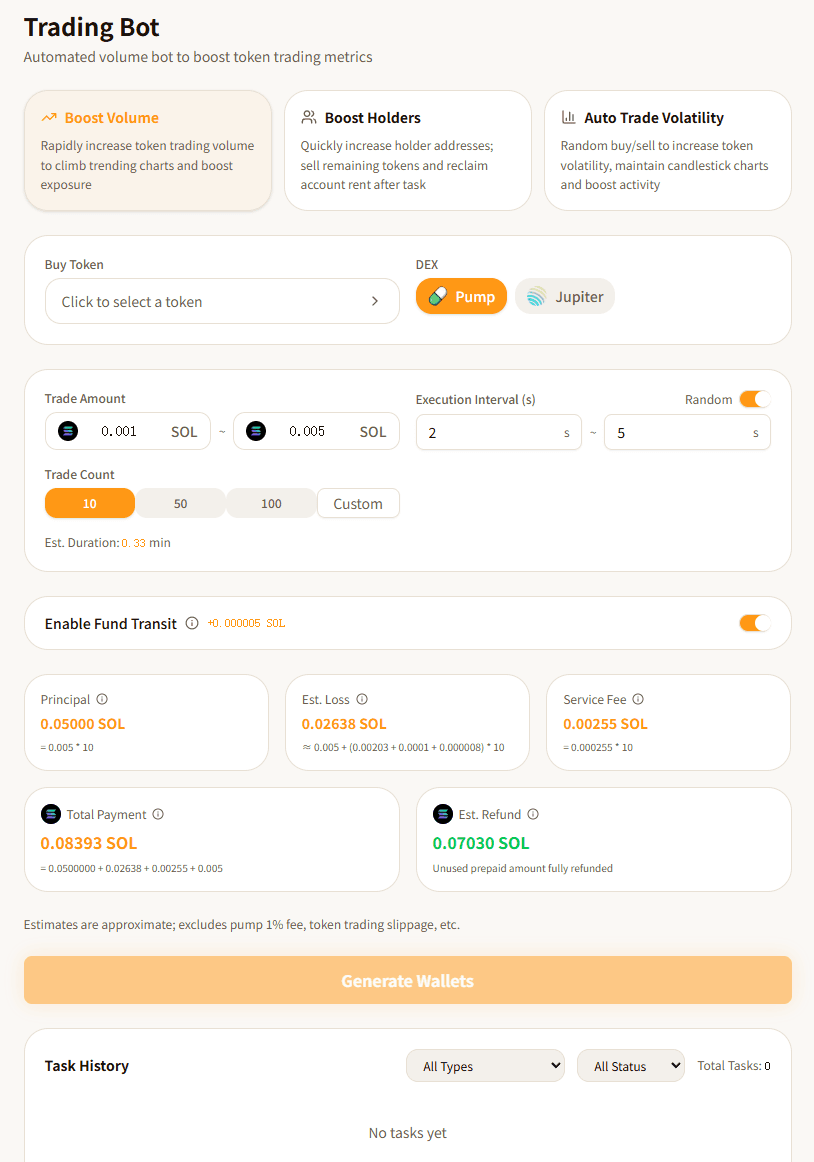
The Trading Bot is an automation tool that generates wallets in bulk and executes preset buy/sell strategies to rapidly boost your token's trading volume, holder count, and trading activity. The system handles the entire workflow automatically — from wallet generation and fund distribution to trade execution and task cleanup.
Three Bot Modes
Boost Volume — Rapidly increase token trading volume to climb trending charts and boost exposure. The bot automatically executes buy-sell cycles to create continuous trade records.
Boost Holders — Quickly increase the number of holder addresses. After the task completes, remaining tokens are automatically sold and account rent is reclaimed.
Auto Trade Volatility — Random buy/sell operations to create token price volatility, maintain active candlestick charts, and boost trader count metrics.
Steps
Select Bot Mode
Choose the bot type you need at the top of the page:
- Boost Volume: Best for tokens that need to climb trending charts and increase exposure
- Boost Holders: Best for tokens that need more holder addresses
- Auto Trade Volatility: Best for tokens that need active candlestick charts
Each mode uses a different trading strategy and has a corresponding fee structure.
Select Token and DEX
- Select Token: Click the token selector to search for or choose the token you want to operate on
- Select DEX: Choose the trading platform from the dropdown (supports Pump.fun and Jupiter)
Your DEX choice affects trade routing and fees. Make sure your token has liquidity on the selected DEX.
Configure Trading Parameters
Adjust the following parameters based on your needs:
| Parameter | Description |
|---|---|
| Trade Amount | SOL amount per trade (set min~max range, system picks random values) |
| Trade Count | Choose 10, 50, 100, or a custom number of trades |
| Execution Interval | Wait time between trades (seconds), supports fixed or random range |
| Threads | Number of concurrent trade execution threads |
Setting the trade amount range too small may cause some trades to fail due to slippage; too many threads may trigger RPC rate limits. Default settings are recommended for first-time use.
Fund Transit (Optional)
Enabling "Fund Transit" routes trading funds through temporary transit addresses to prevent source tracking and enhance privacy.
- Adds an extra 0.000005 SOL transit fee per trade
- Recommended for scenarios requiring higher privacy
Review Cost Breakdown
The system automatically calculates and displays a fee breakdown:
| Item | Description |
|---|---|
| Principal | Total funds used for trading, refunded after task completion |
| Estimated Loss | Account creation fees + priority fees + gas |
| Service Fee | Platform service charges |
| Total Payment | Total SOL required to start the task |
| Estimated Refund | Expected amount returned after task ends |
Costs are estimates and exclude Pump.fun's 1% fee, token trading slippage, etc. Actual refund is based on wallet balance when the task ends.
Generate Wallets and Save Private Keys
Click "Generate Wallets" and the system will create a set of task wallets (1 main wallet + multiple sub-wallets).
A save dialog will appear after generation:
- The system automatically downloads the CSV private key file
- You can also click "Download CSV" to download again manually
- After confirming you've saved the file securely, click "I have saved the private keys" to proceed
The private key file is extremely important! Lost keys cannot be recovered, and funds in task wallets will be permanently inaccessible. Store it securely.
Launch the Bot
After confirming private keys are saved, click "Launch Bot". The system will automatically execute:
- Fund Injection — Transfer required SOL from your wallet to the main wallet
- Fund Distribution — Main wallet distributes SOL to sub-wallets
- Trade Execution — Sub-wallets execute trades according to the configured strategy
- Task Completion — Automatic cleanup after execution finishes
Do not refresh the page while a task is running — task data will be lost.
Monitor and Manage Tasks
After launching, you can manage tasks in the "Task History" section below:
- View task status (Generating → Funding → Running → Completed)
- View real-time progress and execution logs
- Pause: Temporarily pause trade execution
- Resume: Resume a paused task
- Stop: Immediately terminate the task
Filter by bot type and task status is supported.
Post-Task Cleanup
After a task completes or is stopped, sub-wallets may still hold tokens and some SOL. The system will prompt you to:
- Go to the Batch Transfer page to consolidate tokens
- Reclaim token account rent
- Collect remaining SOL back to your main wallet
Click "Go to Batch Transfer" to quickly navigate to the cleanup page.
Important Notes
- Ensure your connected wallet has sufficient SOL balance to cover the total payment
- For first-time use, start with fewer trades (e.g., 10) for testing
- You can pause tasks during execution, but frequent pausing is not recommended
- Funds are not automatically returned after stopping a task — use the Batch Transfer page to recover them
- Bot type cannot be changed within the same task; create a new task instead