
Freeze Account
Freeze or thaw token accounts to block transfers — supports manual freeze and automatic monitoring freeze
🔧 Feature Overview
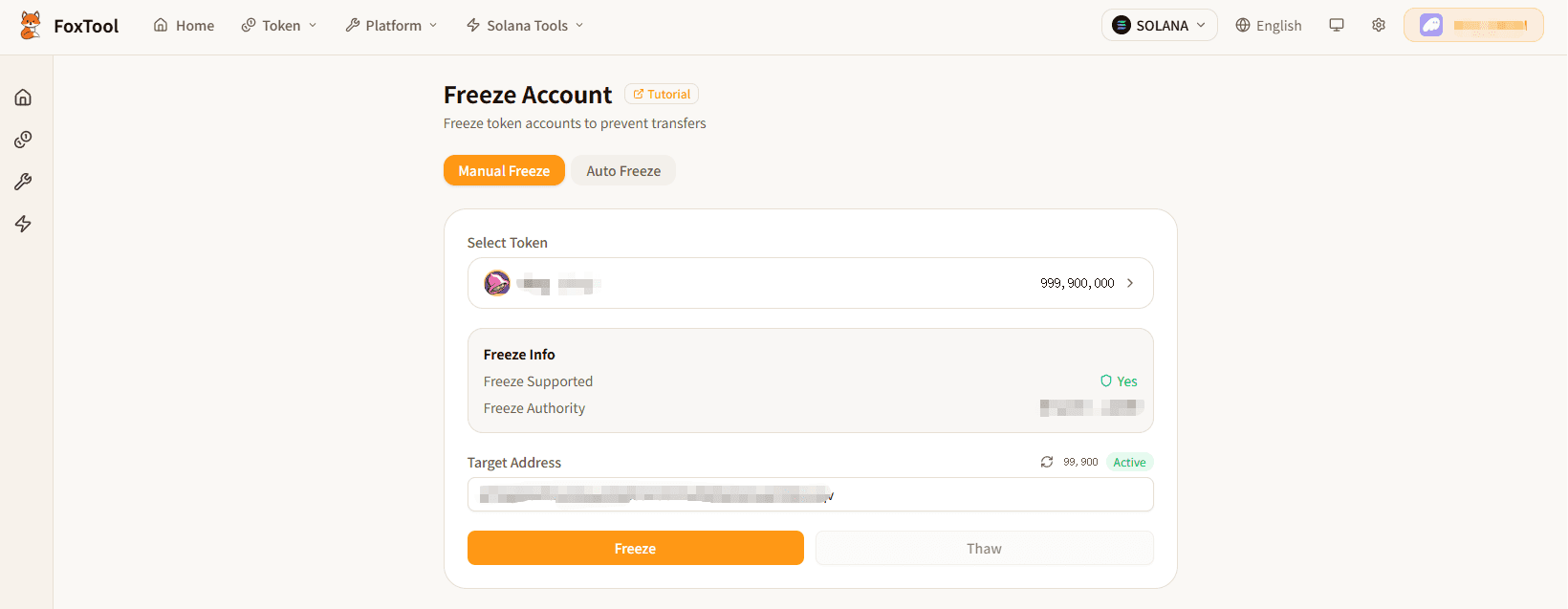
The "Freeze Account" feature allows users who hold the token's Freeze Authority to freeze or thaw specified token accounts. A frozen account cannot perform any token transfer operations.
This page provides two freeze modes:
- Manual Freeze — Enter a target wallet address to manually freeze or thaw that address's token account
- Auto Freeze — Monitor on-chain transactions in real-time via WebSocket and automatically freeze addresses that receive tokens
📋 Prerequisites
- Freeze Authority: You must be the token's Freeze Authority holder to perform freeze/thaw operations
- Connect Wallet (Manual Freeze mode): Click the "Connect Wallet" button in the top-right corner to connect your Solana wallet
- Private Key (Auto Freeze mode): You need to enter the private key of the wallet holding the Freeze Authority for automatic transaction signing
- SOL Balance: Ensure your wallet has a small amount of SOL to pay for on-chain transaction fees
- Token Supports Freezing: The token must have retained its Freeze Authority at creation time; otherwise, freeze operations cannot be performed
🚀 Instructions
Mode 1: Manual Freeze/Thaw
Suitable for scenarios where you need to manually freeze or thaw a specific wallet address.
Step 1: Select Token
Click the "Select Token" button and choose a token for which you hold the Freeze Authority. After selection, a freeze info card will display:
| Info | Description |
|---|---|
| Freeze Supported | Whether the token has retained its Freeze Authority |
| Freeze Authority Address | The wallet address of the current Freeze Authority holder |
Step 2: Enter Target Address
Enter the wallet address you want to freeze/thaw in the "Target Address" input field. The system will automatically check the token account status of that address:
| Status | Meaning | Available Action |
|---|---|---|
| 🟢 Active | Account is normal, can transfer freely | Can freeze |
| 🔵 Frozen | Account is frozen, cannot transfer | Can thaw |
| ⚠️ Account Not Found | The wallet has no token account for this token | Cannot operate |
| ❌ Invalid Address | The entered address format is incorrect | Please check the address |
The target address's token balance is displayed next to the status. Click the refresh button to manually re-check the status.
Step 3: Execute Freeze or Thaw
Based on the target account's current status, choose the appropriate action:
- Freeze — Available when the account status is "Active"; after freezing, the address cannot transfer tokens out
- Thaw — Available when the account status is "Frozen"; after thawing, normal transfer functionality is restored
After clicking the button, your wallet will prompt for a signature. Once confirmed, the operation will be executed on-chain.
💡 Freezing only affects token transfers out. The frozen account can still receive tokens. The account holder can still view their balance.
Mode 2: Auto Freeze
Suitable for scenarios requiring real-time monitoring and automatic freezing of new token recipients, such as preventing resale during a token presale phase.
Step 1: Enter Private Key
Enter the private key of the wallet holding the Freeze Authority in the "Wallet Private Key" input field. The private key is used to automatically sign freeze transactions and is never uploaded to any server.
⚠️ The private key is the highest-level credential for your wallet. Please ensure you use it in a secure environment and only on devices you trust.
Step 2: Select Token
Click the "Select Token" button and choose the token you want to auto-freeze. The system will verify that the private key you entered belongs to the token's Freeze Authority holder.
Step 3: Configure Whitelist (Optional)
When the whitelist is enabled, addresses on the whitelist will not be auto-frozen. This is useful for excluding known safe addresses like market makers or project team wallets.
How to use:
- Toggle the "Whitelist" switch on
- Enter addresses in the text box (supports multiple lines or comma-separated)
- Addresses are automatically added to the whitelist after input
- Click the × next to an address to remove it
Step 4: Configure Freeze Condition (Optional)
When the freeze condition is enabled, only recipients meeting the condition will be frozen.
| Condition | Description |
|---|---|
| Buy Amount >= | Only freeze addresses that received an amount greater than or equal to the specified value. Small buyers will not be frozen |
Step 5: Start Auto Freeze
Click the "Start Auto Freeze" button. The system will establish a WebSocket connection to the Solana network, monitoring all on-chain transactions for this token in real-time.
When a new address is detected receiving tokens, the system will:
- Check if the receiving address is on the whitelist → Skip if whitelisted
- Check if the buy amount meets the freeze condition → Skip if not met
- Check if the target account is already frozen → Skip if already frozen
- Automatically send and sign the freeze transaction
Step 6: View Freeze Logs
The "Freeze Log" panel at the bottom displays real-time records of all auto-freeze operations:
| Column | Description |
|---|---|
| Time | When the operation was executed |
| Address | Target address (abbreviated) |
| Status | Frozen (green) / Skipped (yellow) / Error (red) |
| Details | Skip reason or error message |
| Link | Click to view transaction details on Solscan (when freeze is successful) |
The top statistics show the frozen count and skipped count. Click the clear button to remove all logs.
Step 7: Stop Auto Freeze
Click the "Stop Auto Freeze" button to disconnect the WebSocket connection and stop monitoring.
📊 Parameter Reference
Manual Freeze Parameters
| Parameter | Description | Required |
|---|---|---|
| Token | Select a token for which you hold Freeze Authority | Yes |
| Target Address | The wallet address to freeze/thaw | Yes |
Auto Freeze Parameters
| Parameter | Description | Required |
|---|---|---|
| Wallet Private Key | Private key of the Freeze Authority holder | Yes |
| Token | Select the token to monitor | Yes |
| Whitelist | List of addresses exempt from freezing | No |
| Freeze Condition | Only freeze when condition is met (buy amount threshold) | No |
❓ FAQ
Q: What is Freeze Authority?
A: Freeze Authority is an optional authority of Solana SPL Tokens that allows the authority holder to freeze or thaw any account holding that token. Once frozen, the account cannot transfer tokens out. This authority is set during token creation and can be permanently revoked later (irreversible).
Q: What happens after an account is frozen?
A: A frozen token account cannot initiate any token transfer operations (including transfers, trades, etc.), but can still receive tokens. The account holder can view their balance normally — they just cannot move the tokens.
Q: Why does it say "not the Freeze Authority"?
A: Your currently connected wallet (Manual Freeze mode) or the entered private key (Auto Freeze mode) is not the Freeze Authority holder for this token. Only the Freeze Authority holder can perform freeze/thaw operations.
Q: Is Auto Freeze mode secure?
A: The auto-freeze feature runs entirely in your browser locally — the private key is never uploaded to any server. The WebSocket connection communicates directly with the Solana RPC node. However, please note that entering a private key on any webpage carries potential risks. It's recommended to use a dedicated freeze authority wallet and avoid storing large assets in it.
Q: Can Auto Freeze miss transactions?
A: WebSocket monitoring depends on network connection quality. If token transfers occur during a network interruption, they may be missed. It's recommended to use this feature in a stable network environment and periodically check for any missed transactions.
Q: Can I still freeze after revoking Freeze Authority?
A: No. Once you revoke the Freeze Authority on the "Token Manage" page, you can never freeze any account again. This is an irreversible operation.
⚠️ Important Notes
- Authority Required: Freeze/thaw operations require the Freeze Authority holder; others cannot perform these operations
- Freeze ≠ Burn: Freezing only blocks transfers; tokens remain in the account. Thawing restores normal functionality
- Private Key Security: Auto Freeze mode requires entering a private key — ensure your device is secure and consider using a dedicated freeze authority wallet
- Gas Fees: Each freeze/thaw operation requires a small amount of SOL as a network fee
- Auto Freeze Delay: There is approximately a 1-2 second delay between detecting a transaction and executing the freeze; in extreme cases, the target may transfer tokens out before being frozen
- Compatibility: Supports both SPL Token and Token-2022 (Token Extensions) standard tokens