
Batch Trade
Multi-wallet batch buy, sell, or volume trading — supports Jupiter, OKX, and Pump.fun platforms
🔧 Feature Overview
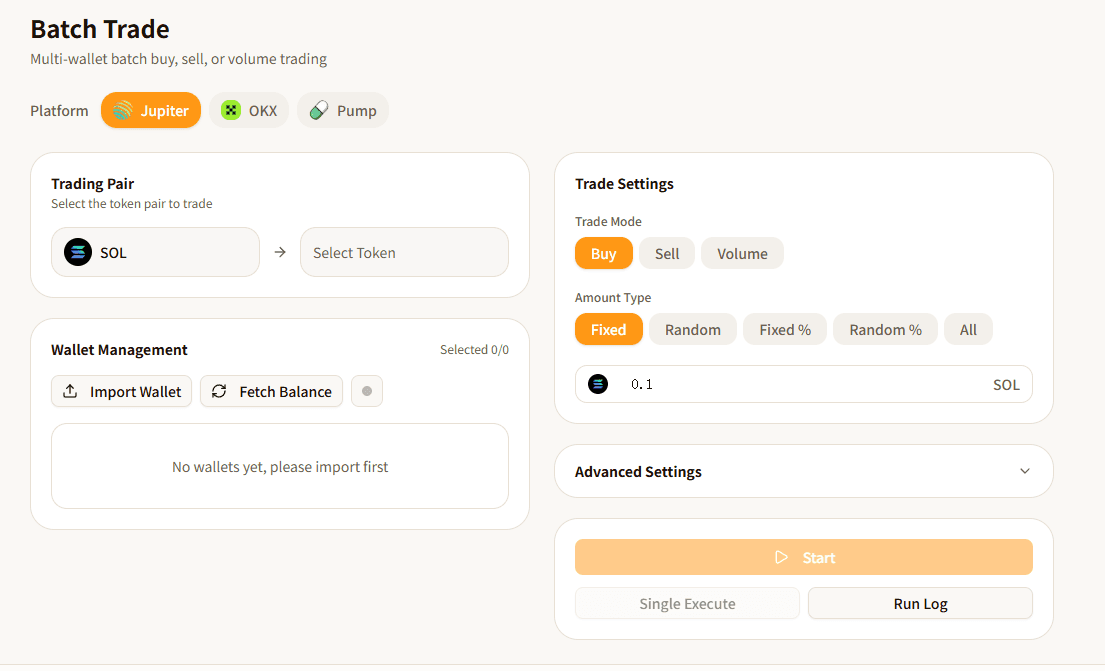
The "Batch Trade" feature allows you to execute token trading operations using multiple wallets in batch. It supports three trading modes: Buy, Sell, and Volume. By importing multiple wallet private keys, you can have multiple addresses execute trades sequentially or randomly in a single operation, with support for custom intervals, slippage, Jito tips, and other advanced parameters.
Core features:
- Multi-Wallet Batch Buy — Multiple wallets buy the same token simultaneously or in sequence
- Multi-Wallet Batch Sell — Multiple wallets sell held tokens in batch
- Volume Mode — Multiple wallets cycle through buy and sell trades to increase trading volume
- Flexible Amounts — Support for fixed amount, random amount, percentage, all balance, and more
- Advanced Control — Execution interval, order, slippage protection, Jito MEV, auto-stop
📋 Prerequisites
- Prepare Wallets: Have multiple wallet private keys ready for trading
- SOL Balance: Ensure each participating wallet has sufficient SOL (for buying/gas fees)
- Token Balance (for selling): Ensure wallets hold the tokens you want to sell
- Determine Token Pair: Know the input/output token addresses for trading
🚀 Instructions
Step 1: Select Platform
Select the trading platform in the "Platform" section:
| Platform | Description | Limitations |
|---|---|---|
| Jupiter | Solana's largest DEX aggregator with optimal routing | Supports all SPL Tokens |
| OKX | OKX DEX aggregator | Supports all SPL Tokens |
| Pump.fun | Pump.fun bonding curve | Only supports SOL as input token |
Step 2: Set Trading Pair
Configure the token pair in the "Trading Pair" section:
- Left Token (Input) — The token you spend. Defaults to SOL; click to select another token
- Right Token (Output) — The token you want to receive. Click to select the target token
💡 You must set up the trading pair before importing wallets. The system queries balances based on the token pair.
Step 3: Import Wallets
Click the "Import Wallets" button and paste wallet private keys in the dialog (one per line, supports batch pasting).
After importing, the wallet list displays:
| Column | Description |
|---|---|
| # | Index number |
| Wallet Address | Abbreviated display (full address can be copied) |
| SOL | Input token balance |
| Token | Output token balance |
| Status | Idle / Processing / Done / Error |
Toolbar actions:
- Fetch Balance — Manually refresh all wallet balances
- Auto-refresh balance — Enable WebSocket-based real-time balance updates
- Select All / Invert — Quickly select wallets for execution
- Delete Selected — Remove unwanted wallets
💡 After importing wallets, balances are automatically fetched and WebSocket real-time updates are enabled.
Step 4: Configure Trade Settings
Trade Mode
| Mode | Description |
|---|---|
| Buy | Use input token to purchase output token |
| Sell | Sell output token to get back input token |
| Volume | Cycle between buy and sell to increase trading volume (Jito required) |
Amount Type
| Type | Description | Example |
|---|---|---|
| Fixed | Each wallet uses the same fixed amount | All wallets buy 0.1 SOL each |
| Random | Each wallet uses a random value within a range | Wallets randomly buy 0.1~0.3 SOL |
| Fixed % | Use a fixed percentage of balance | Each wallet uses 50% of balance |
| Random % | Use a random percentage range of balance | Wallets randomly use 30%~80% |
| All | Use entire balance | Full liquidation |
Step 5: Configure Advanced Settings (Optional)
Click "Advanced Settings" to expand more options:
Execution Interval
Controls the wait time between each wallet's execution:
- Fixed — Wait a fixed number of seconds each time (default: 3 seconds)
- Random — Wait a random duration between min and max seconds (more human-like)
Execution Order
- Sequential — Execute wallets from top to bottom in list order
- Random — Randomly select wallets for execution
Slippage
Protects trades from excessive losses due to price fluctuation:
| Option | Description |
|---|---|
| Auto | System automatically sets 3% slippage |
| 1% / 3% / 5% / 15% | Preset slippage values |
| Custom | Manually enter slippage percentage |
Jito MEV Tip
Set Jito tip to prioritize your transaction packaging:
- In Volume mode, Jito is mandatory and cannot be disabled
- Higher tips increase the probability of priority packaging
Auto Stop
When enabled, you can set automatic stop conditions:
| Condition | Description |
|---|---|
| Price Above | Automatically stop when token price exceeds specified SOL price |
| Run Count | Automatically stop after reaching specified number of executions |
Step 6: Execute Trades
Select the wallets to participate (check the checkboxes), then click the action buttons:
| Button | Description |
|---|---|
| Start | Execute trades in a loop according to configuration (can be stopped anytime) |
| Stop | Interrupt the running execution |
| Single Execute | Execute only one round of trades (no loop) |
| Run Log | View detailed execution logs |
During execution, each wallet's status updates in real-time:
| Status | Meaning |
|---|---|
| Idle | Waiting for execution |
| Processing | Sending transaction |
| Done | Transaction successfully confirmed |
| Error | Transaction failed (check logs for reason) |
After execution completes, a success/failure wallet count summary is displayed.
📊 Parameter Reference
| Parameter | Description | Required | Default |
|---|---|---|---|
| Platform | Trading execution platform | Yes | Jupiter |
| Input Token | Token to spend | Yes | SOL |
| Output Token | Token to receive | Yes | - |
| Trade Mode | Buy / Sell / Volume | Yes | Buy |
| Amount Type | Fixed / Random / Fixed% / Random% / All | Yes | Fixed |
| Amount Value | Specific amount or percentage | Yes | 0.1 |
| Execution Interval | Fixed / Random (seconds) | No | Fixed 3s |
| Execution Order | Sequential / Random | No | Sequential |
| Slippage | Auto / Preset / Custom | No | Auto (3%) |
| Jito Tip | MEV tip (SOL) | No | 0.00005 |
| Auto Stop | Price/count triggered stop | No | Off |
❓ FAQ
Q: What's the difference between Buy, Sell, and Volume?
A: Buy mode uses the input token to purchase the output token. Sell mode does the reverse, selling the output token back for the input token. Volume mode cycles between buying and selling, primarily to increase on-chain trading volume.
Q: Why does Pump.fun only support SOL as input?
A: Pump.fun's bonding curve design only accepts SOL as purchase funds. If you need to trade with other token pairs, please select Jupiter or OKX platform.
Q: What does execution interval do?
A: The interval controls wait time between each wallet's execution. Setting a random interval makes trading behavior more human-like, avoiding bot detection. Shorter intervals mean faster execution, but too short may trigger RPC rate limiting.
Q: When should I enable Jito tip?
A: Enable it when you need fast execution or want to avoid MEV bot attacks. Jito is mandatory in Volume mode. For regular buy/sell, a small tip is also recommended to improve transaction priority.
Q: Will funds be lost if a trade fails?
A: No. If a transaction fails, funds remain in the original wallet and won't be deducted (except gas fees). You can check the failure reason in the run log.
Q: How does auto-refresh balance work?
A: It connects to Solana RPC nodes via WebSocket, monitoring wallet account changes in real-time and updating the balance display without manual refreshing.
⚠️ Important Notes
- Private Key Security: Batch trade requires importing wallet private keys. Keys are only used locally in the browser and are never uploaded to any server
- Sufficient Balance: Ensure each wallet has enough balance (tokens + gas fees) before execution. Insufficient balance will cause transaction failure
- Slippage Settings: Setting slippage too low may cause frequent transaction failures; too high may result in greater price deviation. Auto or 3%~5% is recommended
- Volume Mode Warning: Volume mode continuously cycles until manually stopped or auto-stop conditions are triggered. Monitor your balances carefully
- Pump.fun Limitation: Pump.fun platform only supports SOL as the input token (buy direction)
- Network Conditions: Transactions may fail or be delayed during network congestion. Consider increasing Jito tip and slippage accordingly
- Check Logs: After execution, review the run log to understand each wallet's execution details and failure reasons